LocCheck User Manual
This manual covers LocCheck 1.2.0 for Unreal Engine 5.5, 5.6, 5.7, and 5.8.
LocCheck scans your project's String Tables, localization data, Widget Blueprints, Data Assets, Data Tables, Blueprint defaults, and related assets. It turns the results into a practical review list without editing or fixing your project content automatically.
Fab listing: Open LocCheck on Fab
1. Install and open LocCheck
Install from Fab
- Install LocCheck for your engine version through the Epic Games Launcher.
- Open your Unreal project.
- Go to Edit → Plugins → Editor → LocCheck.
- Enable the plugin.
- Restart the editor if Unreal asks you to.
Install from source
- Close Unreal Engine.
- Copy the
LocCheckfolder into your project'sPluginsdirectory. - Confirm the plugin descriptor is here:
YourProject/Plugins/LocCheck/LocCheck.uplugin
- Reopen the project and allow Unreal to compile the module.
Compiling from source requires a C++ project or an installed C++ toolchain.
Open the plugin
Use:
Tools → ECal Studios → LocCheck
You can also use Ctrl+Shift+L.
The LocCheck window contains:
- A navigation sidebar for Dashboard, Tables, Problems, Usage Finder, Hardcoded Text, Reports, and Settings
- Header actions for Cultures, Quick Scan, and Export
- A right-side Inspector that updates when you select an entry or issue
2. Run a Quick Scan
Press Quick Scan to collect and review the current project state.
A scan:
- Collects String Table entries from the project.
- Reads localization archives under
Content/Localization. - Uses compiled locres data as a fallback where needed.
- Re-applies saved review statuses and ignored issues.
- Indexes project assets that reference each String Table entry.
- Runs the enabled QA scanners.
- Recalculates the health score and refreshes every page.
Translation coverage is read directly from disk and does not depend on the language currently active in Unreal Editor.
Scans are on demand. After you change translations, edit assets, compile localization data, or run Gather Text, press Quick Scan again. You do not need to restart the editor.
3. Dashboard
The Dashboard is the fastest way to understand the latest scan.
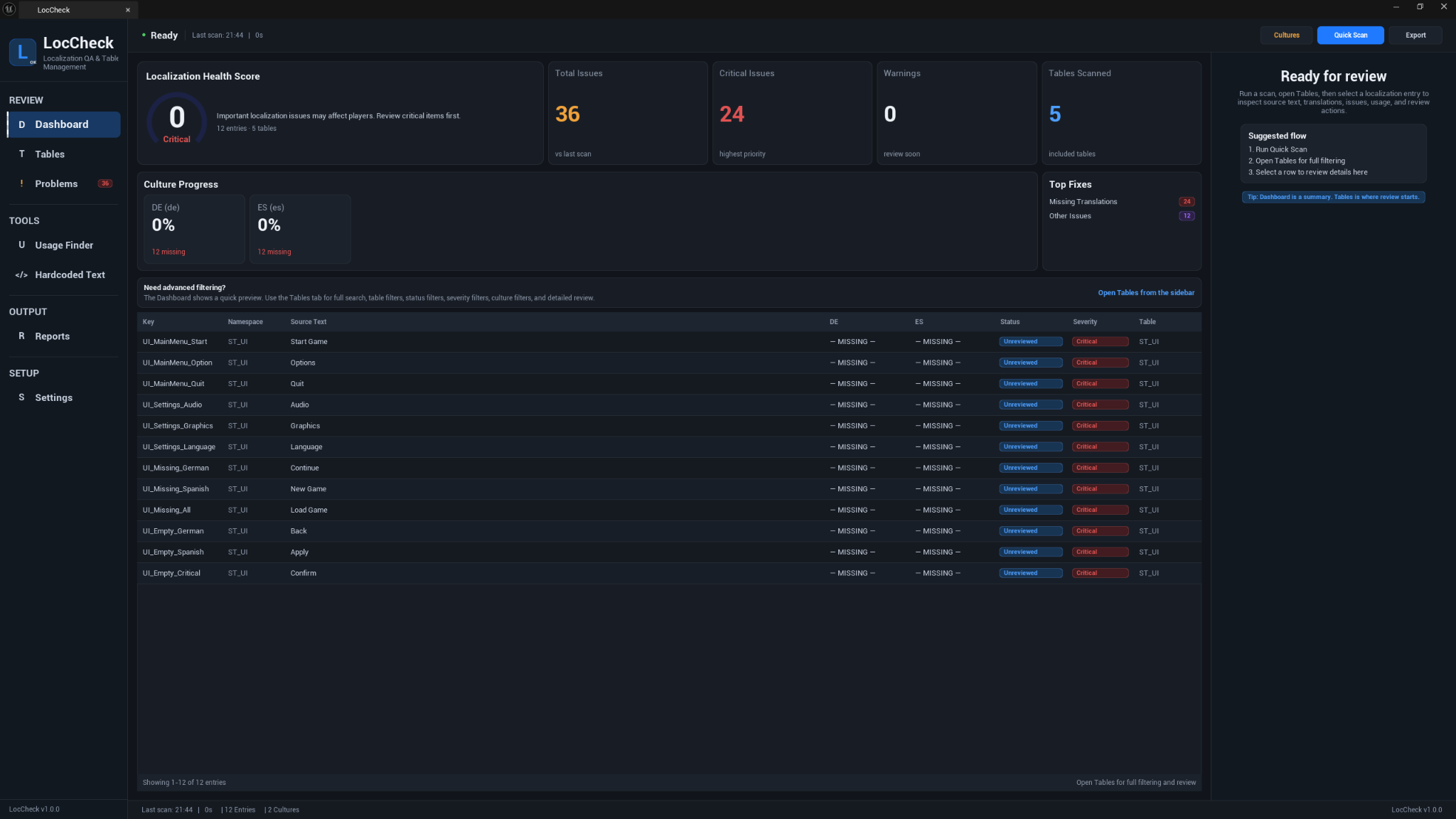
It includes:
- Localization Health Score
- Total issue, critical, warning, and suggestion counts
- Text risk totals
- Per-culture translated and missing progress
- Top Fixes based on the most common findings
- A quick table of entries with their status, severity, and culture state
Use Open Tables when you need the complete searchable entry list.
About the health score
The score is a practical review aid. It reflects the enabled scanners and their findings, but it is not a guarantee that every translation is linguistically correct.
4. Cultures and translation coverage
The Cultures button opens the relevant Settings section.
Automatic culture detection
Leave Cultures to Scan empty when you want LocCheck to detect targets from generated localization data. If no generated data exists yet, LocCheck can fall back to the project's gather configuration.
Set the list manually when you need exact control over the cultures included in a review.
Culture names and fallback
LocCheck follows Unreal's culture hierarchy:
- Names are canonicalized, for example
fr_frbecomesfr-FR. - Culture folder matching ignores letter casing.
- A specific culture can fall back to a valid parent, such as
fr-CAtofr. - A parent culture never borrows from one of its regional children.
- One regional culture never substitutes for a sibling culture.
- Unrecognised culture names are reported in the Output Log.
A translation whose text intentionally matches the source still counts as translated.
Translation conflicts
When two localization targets provide different translations for the same namespace and key, LocCheck keeps a deterministic result and raises a Translation Conflict warning. This gives you a visible item to review instead of silently hiding the disagreement.
5. Tables and Inspector
The Tables page is the main entry browser.
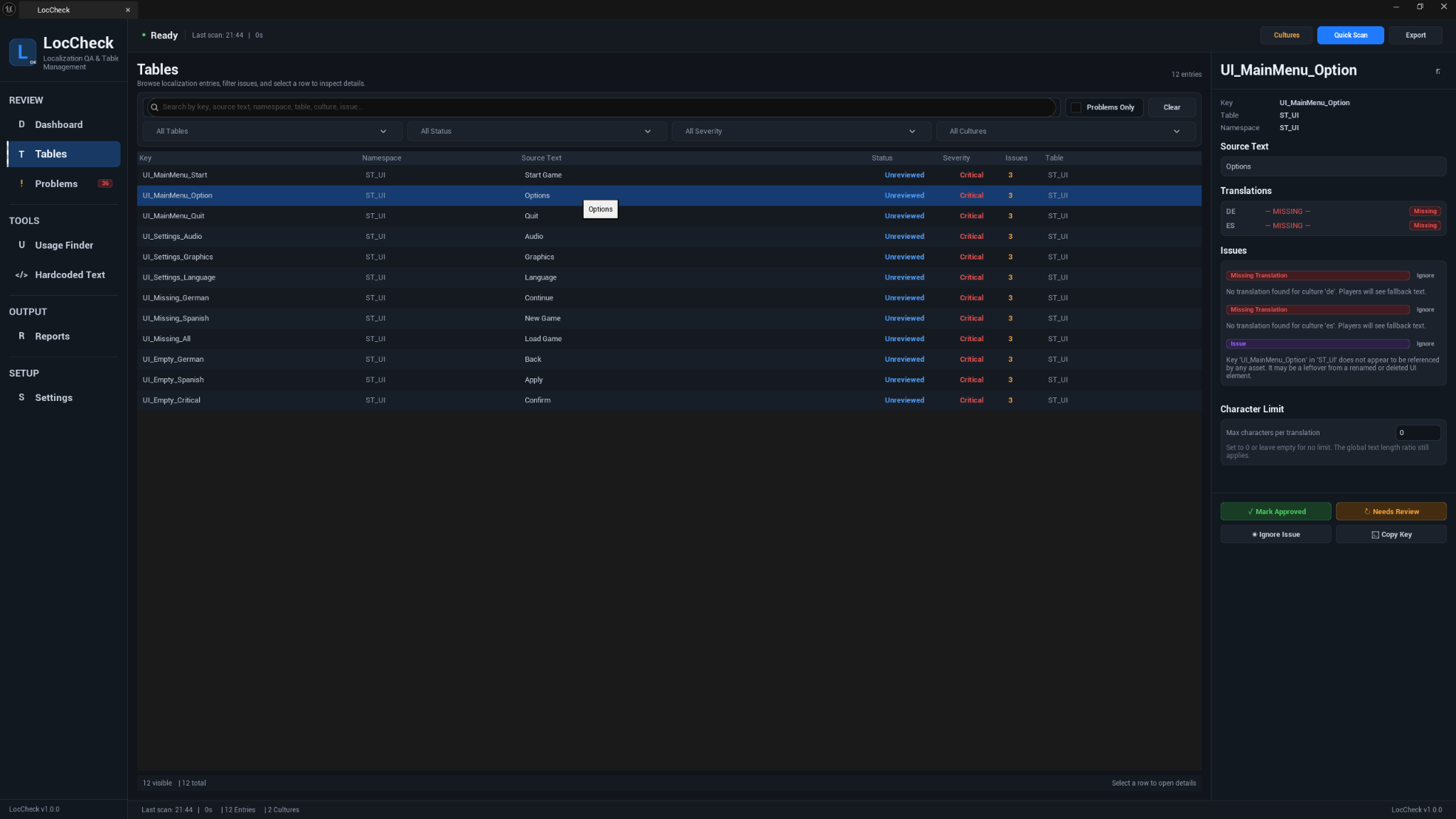
You can search across:
- Key
- Source text
- Namespace
- String Table
- Culture
- Translation text
- Issue message
Available filters include table, review status, severity, culture, and Problems Only. Columns can be sorted to make large result sets easier to review.
Select a row to update the Inspector. Double-click a supported row to reveal the related table or asset in the Content Browser.
Inspector details
The Inspector can show:
- Key, namespace, and table
- Source text
- Per-culture translation and state
- Issues and suggested fixes
- Per-issue Ignore actions
- Developer and context notes
- Optional character limit
- Assets where the entry is used
- Mark Approved and Mark Needs Review actions
- Copy and open/reveal actions
Character limits
Set an entry-specific character limit when the text must fit a compact part of the UI, such as a button, HUD label, or menu item. Use 0 when no custom limit is required.
6. Problems and bulk review
The Problems page focuses on findings rather than complete table entries.
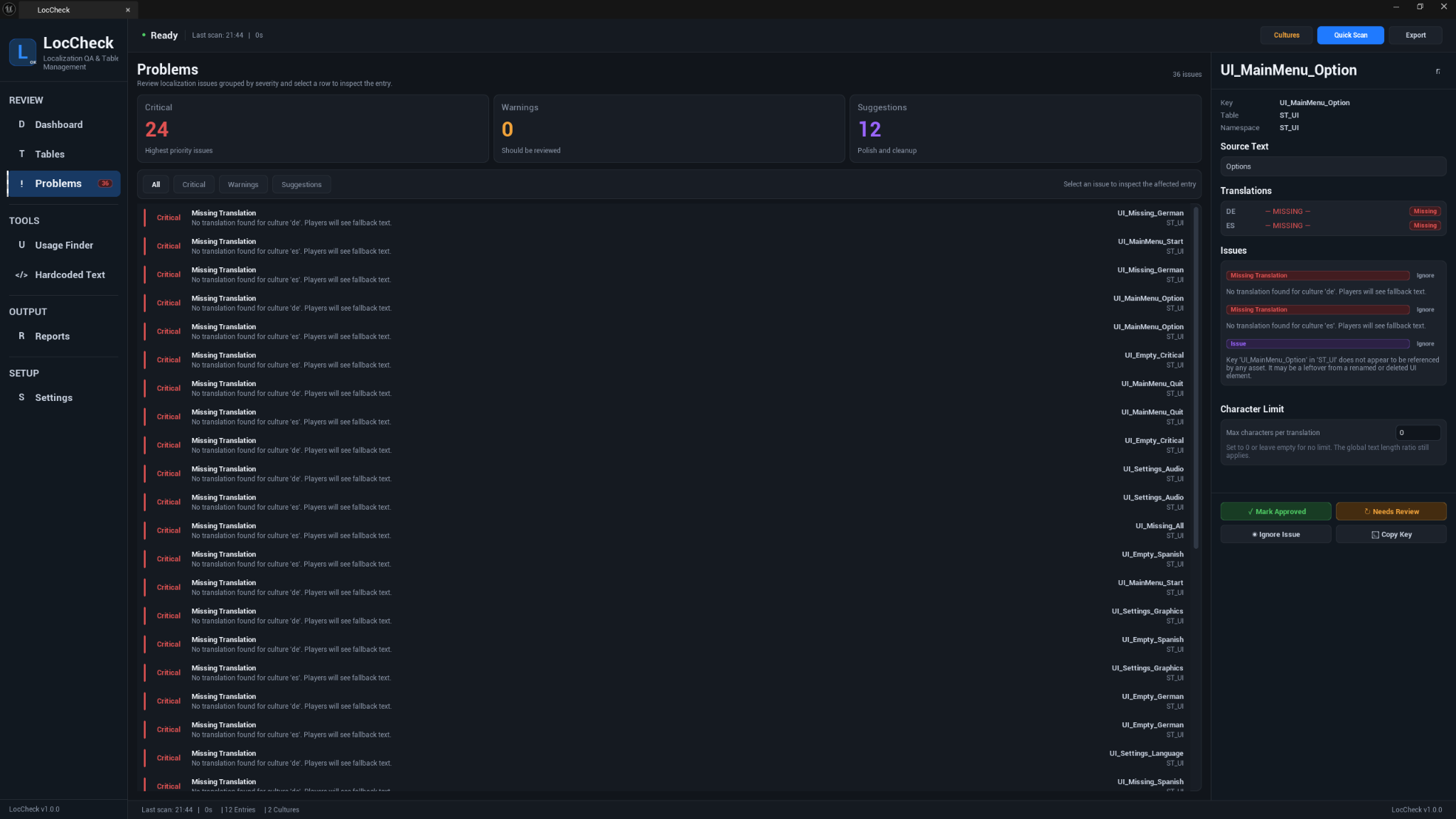
Issues are grouped by severity and can be filtered using the Critical, Warnings, and Suggestions controls. Each row shows the issue, key, table, and current review-status badge.
Select multiple findings
- Click a row to select it and show its entry in the Inspector.
- Ctrl-click toggles additional rows.
- Shift-click selects a range.
- Select All Filtered selects everything visible through the current filters.
- Clear Selection removes the current selection.
The toolbar shows the exact selected count.
Bulk actions
Use:
- Mark Selected Approved
- Mark Selected Needs Review
- Ignore Selected Issues
- Approve All Filtered
Large operations ask for confirmation and show the number of affected findings. Each action updates the status badges, Tables page, and Inspector immediately, then displays a confirmation notification such as 3 entries marked Approved.
Bulk changes are processed as one batch with one save. This avoids rebuilding the list for every individual row when reviewing a large project.
Approval is a review decision
Approving an entry records that somebody reviewed the finding. It does not change the underlying translation or remove the original localization issue from your project data.
Persistent review data
Review statuses, notes, ignored issues, and character limits are stored per project in:
Saved/LocCheck/ReviewData.json
They survive closing the tab, restarting the editor, rescanning, and running Gather Text.
7. Usage Finder
Use Usage Finder when you need to know where a localization entry appears in the project.
Search by:
- Exact key
- Part of a key
- Namespace
- String Table name
Results update as you type. Each result can show the referencing asset, asset type, matched key, and the property or Data Table row containing the reference. Use Open Asset or double-click to reveal the asset in the Content Browser.
What the usage scan inspects
Usage inspection covers:
- Widget Blueprint widget trees
- Data Table rows
- Data Assets
- Blueprint class defaults
FTextnested inside structs, arrays, sets, and maps
String Tables are matched by exact identity. Two tables with the same asset name in different folders are not treated as the same table.
Understanding coverage states
Usage Finder separates unavailable data from a genuine zero-reference result:
- Not scanned — Run Quick Scan before relying on usage results.
- References found — One or more inspected assets use the entry.
- None found under complete coverage — Every relevant referencer was inspected successfully and no usage was found.
- Truncated coverage — The referencer limit was reached or the scan was cancelled; missing results are inconclusive.
- Failed coverage — One or more required assets could not be inspected; missing results are inconclusive.
Only the third state is treated as genuinely unreferenced.
Referencer limit
Usage Scan — Max Referencers Per Table controls how many referencing packages LocCheck inspects for each String Table. The default is 200.
Set it to 0 for unlimited inspection with progress and cancellation. When a table exceeds the configured limit, LocCheck keeps the usages it already found and reports incomplete coverage instead of incorrectly marking the remaining entries unused.
8. Hardcoded Text and Text Risks
The Hardcoded Text page brings together Widget Blueprint text and reflected asset FText values that may be outside your intended localization workflow.
The search box filters live across:
- Asset name and path
- Asset type
- Widget, source, or property
- Data Table row
- Suspect text
Press Enter to apply the current text, clear the box to restore all results, or use All Risks. Long result lists include working scrollbars through the final row.
Use Open Asset or double-click a result to reveal the related asset.
Widget Blueprint text
LocCheck reviews common player-facing fields from controls such as:
- TextBlock
- RichTextBlock
- EditableText
- EditableTextBox
It can also flag placeholder-style labels such as Text Block, Button, New Text, and TODO.
Asset FText scanning
LocCheck can inspect reflected FText values in:
UDataAssetandUPrimaryDataAssetcontentUDataTablerow structs- Nested structs
- Arrays, sets, and maps
- Safe Blueprint class defaults
Common examples include item names, descriptions, weapons, skills, spells, quests, dialogue, buffs, debuffs, tooltips, and ability text.
Each result can include the asset, type, property path, row name, suspect text, and review message.
9. QA scanners
LocCheck can run checks for:
- Missing translations
- Empty translations
- Placeholder mismatches
- Rich-text tag mismatches
- Long text and character limits
- Duplicate keys and repeated source text
- Key naming rules
- Font glyph coverage
- Unused entries
- Hardcoded Widget Blueprint text
- Reflected asset
FText - Translation conflicts
Disable checks that do not apply to the current project when you want a more focused scan.
10. Reports and export
The Reports page exports the current scan for documentation, QA, translation handoff, or internal planning.
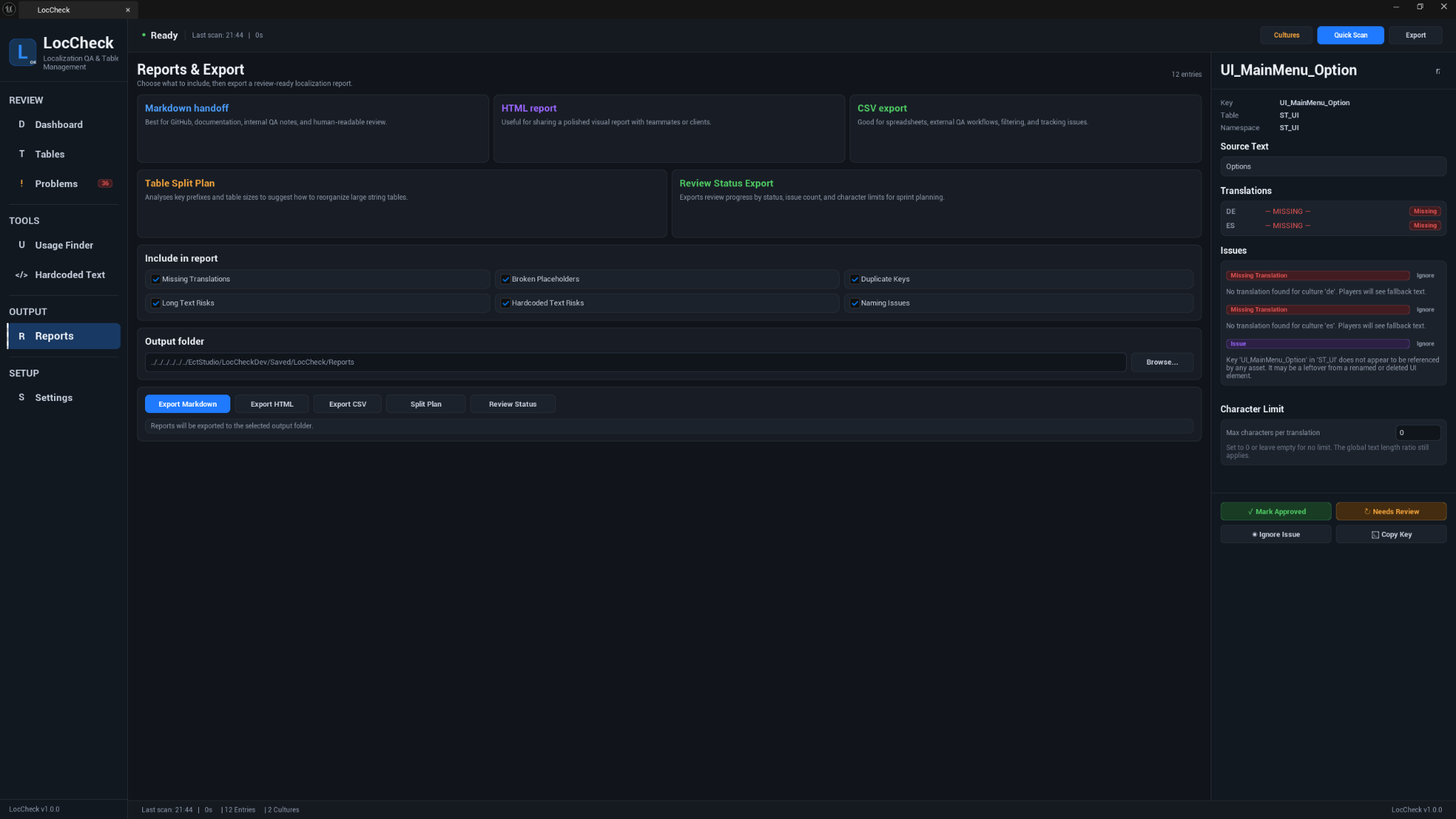
Export formats
| Export | Best for |
|---|---|
| Markdown | Documentation, Git repositories, release notes, and readable QA handoff. |
| HTML | A polished standalone report for teammates, clients, or review folders. |
| CSV | Spreadsheets, filtering, issue tracking, and external QA workflows. |
| Table Split Plan | Reviewing large String Tables and possible reorganisation. |
| Review Status | Planning work from status, severity, issue count, and character limits. |
You can choose which issue categories are included in the report.
The default output folder is:
Saved/LocCheck/Reports
Change it from the Reports page or plugin settings.
11. Settings
The Settings page controls how LocCheck scans and reports your project.
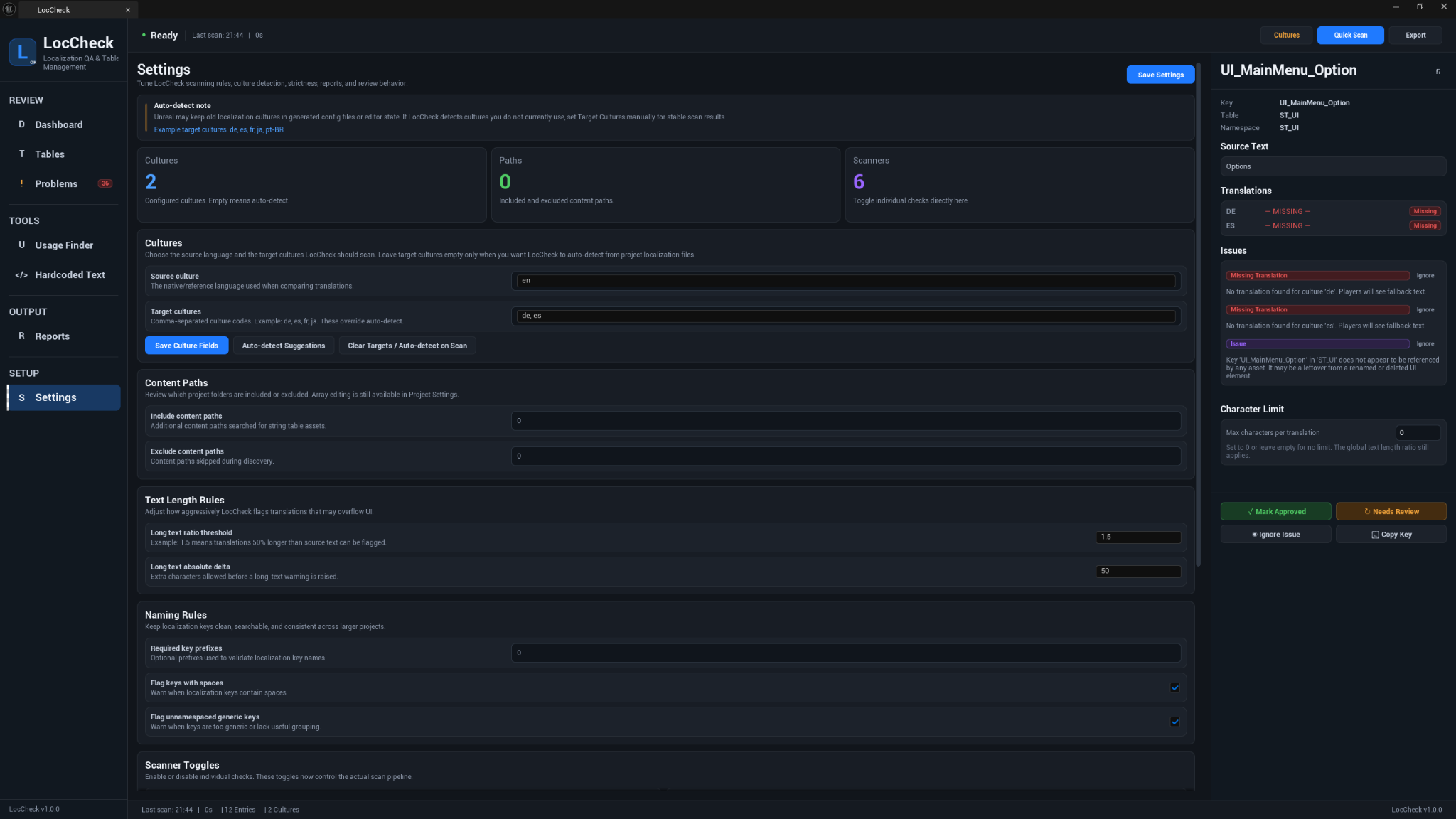
Cultures
- Source Culture
- Cultures to Scan
Leave the target list empty for automatic detection, or define it manually for exact control.
Content paths
Use Include Paths and Exclude Paths to limit the content being inspected. This is useful for excluding test folders, old content, plugins, or experimental UI.
Text length
- Long Text Ratio Threshold
- Long Text Absolute Delta
- Per-entry character limits in the Inspector
Naming
- Required key prefixes
- Keys with spaces
- Generic unnamespaced keys
- Placeholder-style names
Scanners
Individual toggles are available for Hardcoded Text, asset FText, duplicates, placeholders, naming, font glyphs, unused entries, and the other QA checks.
Usage and unused entries
- Usage Scan — Max Referencers Per Table
- Unused Entry — Ignored Namespaces
Use ignored namespaces for keys that are constructed dynamically at runtime and cannot be discovered statically.
Score and reports
- Penalty Multiplier
- Report Output Path
12. Working with Gather Text
LocCheck 1.2.0 is safe to keep enabled during commandlet workflows. It does not create editor UI while running inside headless UnrealEditor-Cmd operations, and shutdown remains safe when no UI was created.
A typical workflow is:
- Run Gather Text from the Localization Dashboard or with
-run=GatherText. - Translate through your normal workflow.
- Compile localization data when your project uses compiled locres files.
- Return to LocCheck and press Quick Scan.
- Review the refreshed coverage, usage, and text risks.
13. Recommended review workflow
- Run Quick Scan.
- Fix critical missing or empty translations first.
- Review placeholder and rich-text mismatches.
- Check long translations where the UI has limited space.
- Review translation conflicts between targets.
- Inspect Hardcoded Text and asset
FTextfindings. - Use Usage Finder to confirm where important keys appear.
- Mark entries Approved or Needs Review.
- Ignore intentional false positives.
- Export a report for your records.
- Re-scan after making changes.
14. Troubleshooting
Gather Text crashes while LocCheck is enabled
This issue was fixed in version 1.2.0. Confirm the version shown at the bottom of the LocCheck window is 1.2.0 or newer, then retry the gather operation.
Valid translations appear missing
- Confirm the generated data exists under
Content/Localization. - Check the Source Culture and Cultures to Scan settings.
- Run Quick Scan again after Gather Text or importing translations.
- Check the Output Log for unrecognised culture names.
Version 1.2.0 reads nested namespaced and String Table archive entries, compiled locres fallback data, and valid parent cultures.
Usage Finder shows no results
Run Quick Scan first and read the coverage status above the result list. A complete zero-reference state means no references were found. Truncated or failed coverage means the result is inconclusive.
Increase Usage Scan — Max Referencers Per Table, or set it to 0, when a table has more referencers than the current limit.
An entry is marked unused but is generated at runtime
Add the relevant namespace to Unused Entry — Ignored Namespaces, or ignore the issue for that entry.
Hardcoded Text search does not return the expected item
Clear the current filter or press All Risks, then search using part of the asset name, path, property, row, or suspect text. Search filtering and result scrolling were corrected in version 1.2.0.
Font glyph scanning reports nothing
The scanner needs imported UFontFace assets. Import the fonts used by the project and run Quick Scan again.
Scanning is slow
Large projects take longer when unlimited usage inspection, asset FText, hardcoded text, and font checks are enabled. Use include/exclude paths, set an appropriate referencer limit, or temporarily disable scanners that are not needed for the current pass.
A report does not export
Confirm the output directory exists and Unreal has permission to write there. Try a project Saved subfolder when testing.
15. FAQ
Does LocCheck translate my game?
No. LocCheck audits and organises localization data; it does not create translations.
Does LocCheck modify my assets?
No. Scanning and review actions do not edit, delete, or automatically fix project assets. LocCheck stores its own review data separately.
Does it work before localization is complete?
Yes. It is useful early because it shows missing work and helps you prepare a cleaner localization structure.
Does it support large String Tables?
Yes. Search, filters, Problems Only, bulk review, usage limits, and exports are designed to keep large projects manageable.
Does it affect packaged games?
No. LocCheck is editor-only and has no runtime impact.
Can it open the exact Blueprint node or graph pin?
Not currently. LocCheck can reveal the related asset, but Blueprint graph-pin literals are not part of the current usage detection system.
16. Known limitations
- Runtime-generated String Table keys cannot always be discovered statically.
- Blueprint graph-pin text literals are not currently included in usage detection.
- Assets that cannot be loaded produce incomplete coverage rather than a definitive unused result.
- Custom Slate UI, runtime-created text, external databases, and non-reflected custom storage may require manual review.
- Font glyph checking requires imported
UFontFaceassets.
Support
For help, email [email protected] and include:
- LocCheck version, currently 1.2.0
- Unreal Engine version
- Operating system
- The workflow you were using
- Screenshots when useful
- Relevant Output Log lines containing
LogLocCheck
Copyright (c) 2026 ECal Studios. All Rights Reserved.